
How do I send invoices to Xero?
Connect Xero, fill in your invoicing rules, then set Send invoices to Xero to On. From then on, finishing a job for a customer who pays by invoice makes a draft invoice in your Xero.
LawnFlow never sends an invoice to your customer. It makes a draft. You review it and send it from Xero.
-
Tap More, then Xero, then Connect to Xero, and sign in to Xero. (The steps are in How do I bring my customers in from Xero?)
-
Back in More, tap Invoicing rules. Answer Are your prices GST inclusive? with Prices include GST or GST added on top, pick the Account invoices post to, set Payment terms (days), and tap Save invoice settings.
-
Tap Xero again. Under Send invoices to Xero, tap On. LawnFlow asks you to confirm first. Jobs finished before you turned this on are never sent.
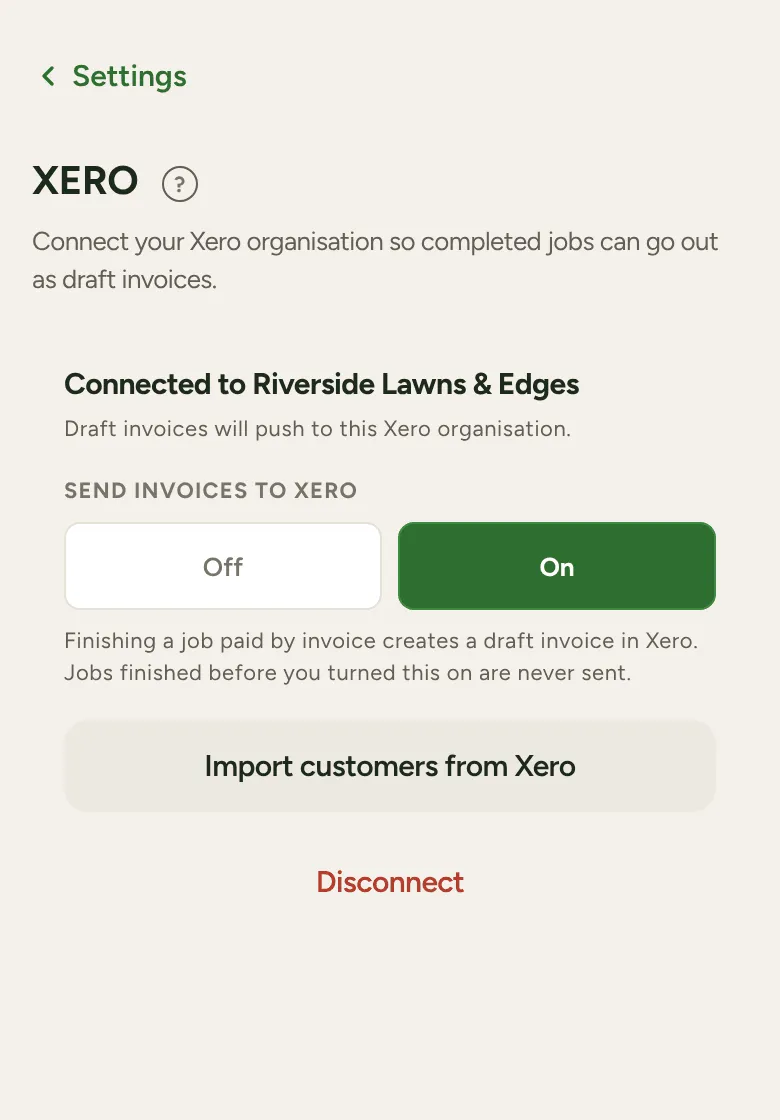
-
Make sure the customer’s Pays by row says Invoice. When you finish their job, tap Job Complete, check the amount and tap Confirm. The draft goes to Xero in the background.
Jobs that didn’t go
Section titled “Jobs that didn’t go”No signal at the job, or an email missing? The job waits for you. It shows as Ready to invoice under Needs you in More, and as Invoices waiting on the Money tab.
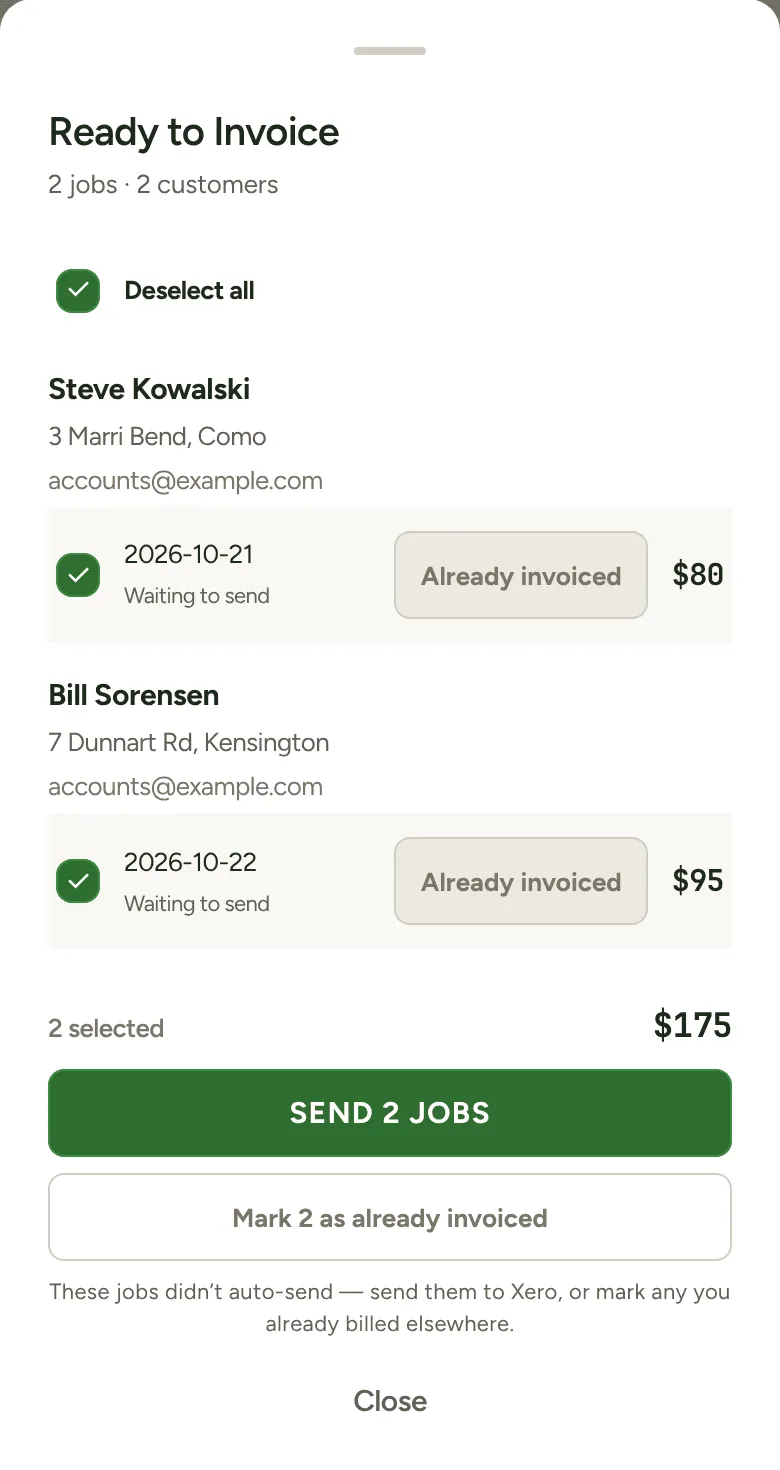
- Tap Ready to invoice.
- Tick the jobs to send, or tap Select all.
- Tap Send, check the Confirm send list, and send. Each customer gets one draft, with each job as a line.
If you already billed a job some other way, tap Already invoiced on it so it’s never sent.
When it’s done, LawnFlow says Draft invoices created in Xero. Open Xero to review and send them.
Turning it off
Section titled “Turning it off”Set Send invoices to Xero to Off and nothing goes to Xero. Jobs still finish and record as normal, and importing customers still works.