
How do I put a customer on hold?
Open the customer’s page and tap Put on hold at the bottom. They stop coming up on Today and the Week tab, but their history stays and you can bring them back any time.
Use it for a customer who has stopped for winter, moved out, or gone quiet. Nothing is deleted.
-
Open the customer’s page (on Today, tap the job, then Edit; on the Week tab, press and hold it).
-
Scroll to the bottom and tap Put on hold.
If they still owe you money
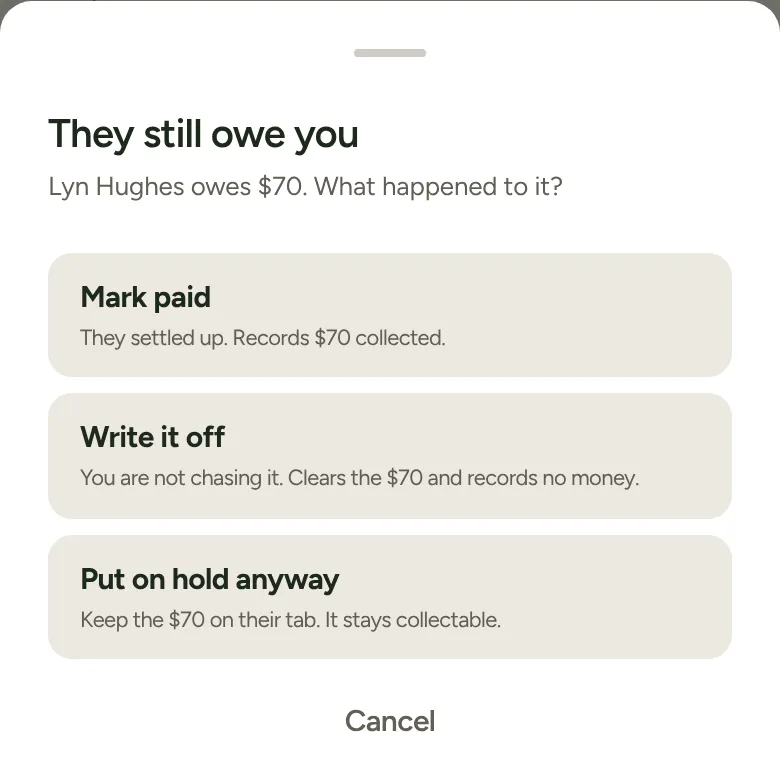
Section titled “If they still owe you money”LawnFlow asks first, under They still owe you:
- Mark paid: they settled up. It records the money as collected and clears the tab.
- Write it off: you’re not chasing it. It clears the tab and records no money.
- Put on hold anyway: the money stays on their tab, and you can still collect it later.
Tap Cancel to leave them as they are.
A customer on hold who still owes you stays on the Money tab’s list, marked On hold, so the money isn’t forgotten.
Finding them again
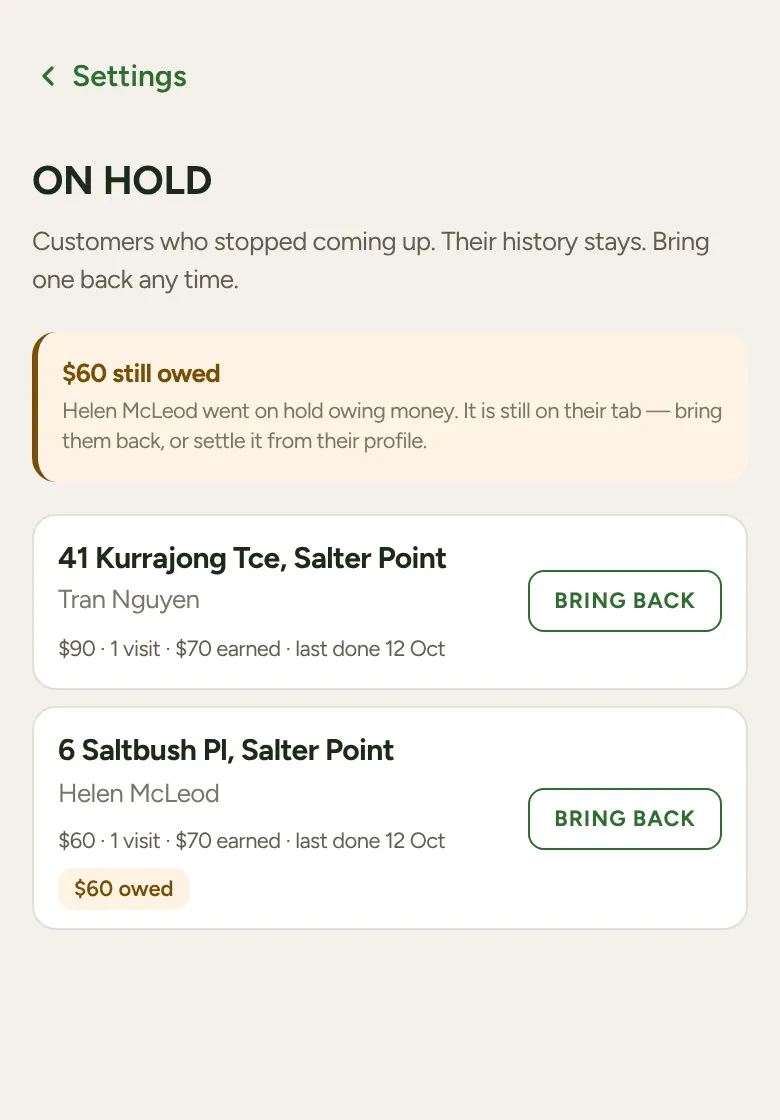
Section titled “Finding them again”Tap More (the Settings screen) and tap On hold. It lists everyone on hold, the ones with a price or past visits first, each with their price, visit count and when they were last done. Customers who came in with nothing on file sit below in a fold you can open.
You can also find any customer, on hold or not, with the search box on the Money tab (Search jobs by name or address…).
Bringing someone back
Section titled “Bringing someone back”Tap Bring back beside them in More, On hold, or on their own page. They come back due this week, ready to plan onto a day. They don’t land on today’s run by themselves.
If they’re missing a price or how often you go, LawnFlow opens their setup card so you can fill that in first.