
How do I undo a job I ticked off by mistake?
Tap Undo next to the job in the Done list at the bottom of Today. The job goes back on today’s list, and its tab, credit and due date go back to how they were.
-
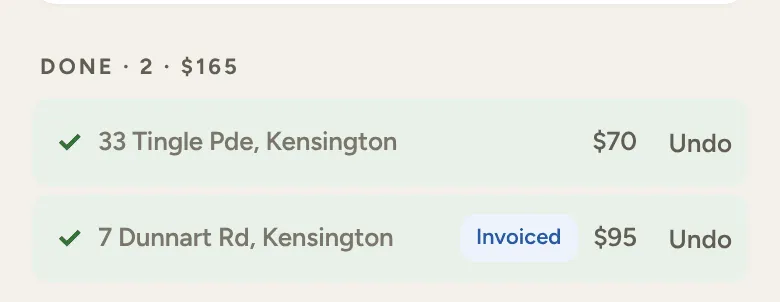
On Today, scroll down to Done at the bottom. Every job you’ve finished today is listed there with its amount.
-
Tap Undo next to the one you got wrong. LawnFlow says “Undone — job marked incomplete”.
-
The job is back on today’s list. Tap it and Job Complete again, the right way this time.
What undo puts back
Section titled “What undo puts back”- Cash and tab: their tab, or their credit, goes back to exactly what it was before. The visit no longer counts as done, so their next due date moves back too.
- Extra work that was charged with the visit goes back to waiting for their next visit.
- One-off visits have their own Undo in the same Done list. It reopens the visit (“Undone — one-off visit reopened”).
Invoice jobs and Xero
Section titled “Invoice jobs and Xero”If the invoice already went to Xero as a draft, LawnFlow deletes that draft in Xero first, then undoes the job. If it can’t, it leaves the job alone and tells you why, so you never end up with an invoice in Xero for a job LawnFlow thinks isn’t done:
- “Still sending — try again in a moment”: the invoice is on its way to Xero right now. Wait a few seconds.
- “This invoice’s already gone through in Xero — undo it there”: it’s been approved, paid or voided in Xero, so it isn’t a draft any more. Sort it out in Xero.
- “Couldn’t reach Xero — try again”: no signal, or Xero is slow. Try again shortly.
If Xero isn’t connected, or the invoice hadn’t been sent yet, the job just undoes.
Only for today
Section titled “Only for today”Undo sits in the Done list on Today, so it’s for jobs finished today. Once the day rolls over, the job leaves Today and there’s no Undo for it.