
How do I text customers before I arrive?
Turn on Text before visit for the customer. Their job then shows a Text button, and they turn up on a list of who to text the day before. Tapping either opens Messages with the text already written. You tap send.
LawnFlow never sends a text for you. It opens your phone’s own Messages app, so the text comes from your number and costs what a normal text costs.
-
Open the customer’s page, tap Text before visit and choose Yes.
-
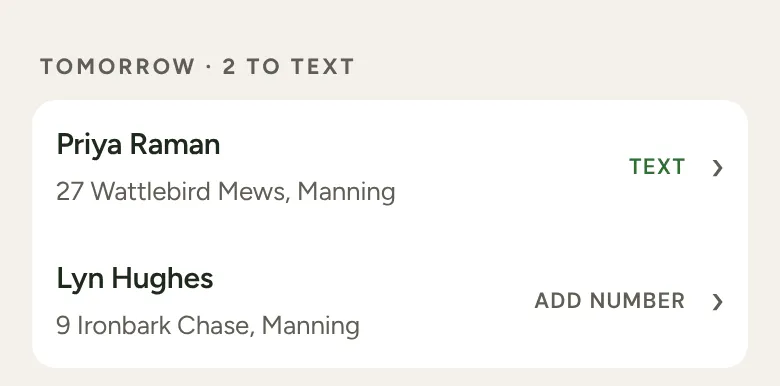
The day before: once every job on Today is finished, a Tomorrow · 2 to text list appears on Today, just above the Done list. It lists tomorrow’s customers who have Text before visit on. Tap a name and Messages opens with “I’ll be at your place tomorrow” written for them.
-
On the day: their job on Today shows a Text button. Tap it to send an “on my way” text.
Who’s on tomorrow’s list
Section titled “Who’s on tomorrow’s list”Customers with Text before visit on Yes who are booked for tomorrow on the Week tab. So plan the week first. On a Sunday, the list is Monday’s customers from next week’s plan.
No number saved
Section titled “No number saved”The row says Add number instead. On phones that allow it, tapping it opens your contacts so you can pick their number, and LawnFlow saves it. If not, it tells you to add the number on their page under Phone.
Change the wording
Section titled “Change the wording”Tap More (the Settings screen), then Text messages. There are two: On My Way Today and Coming Tomorrow. Type {name} where the customer’s name should go. The standard wording includes your business name if you’ve set one. Clear a box to go back to the standard wording.