
What if an invoice gets stuck on its way to Xero?
A job marked stuck never reached Xero. Open Ready to invoice, tick it and send it again. It won’t make a second invoice.
How you’ll know
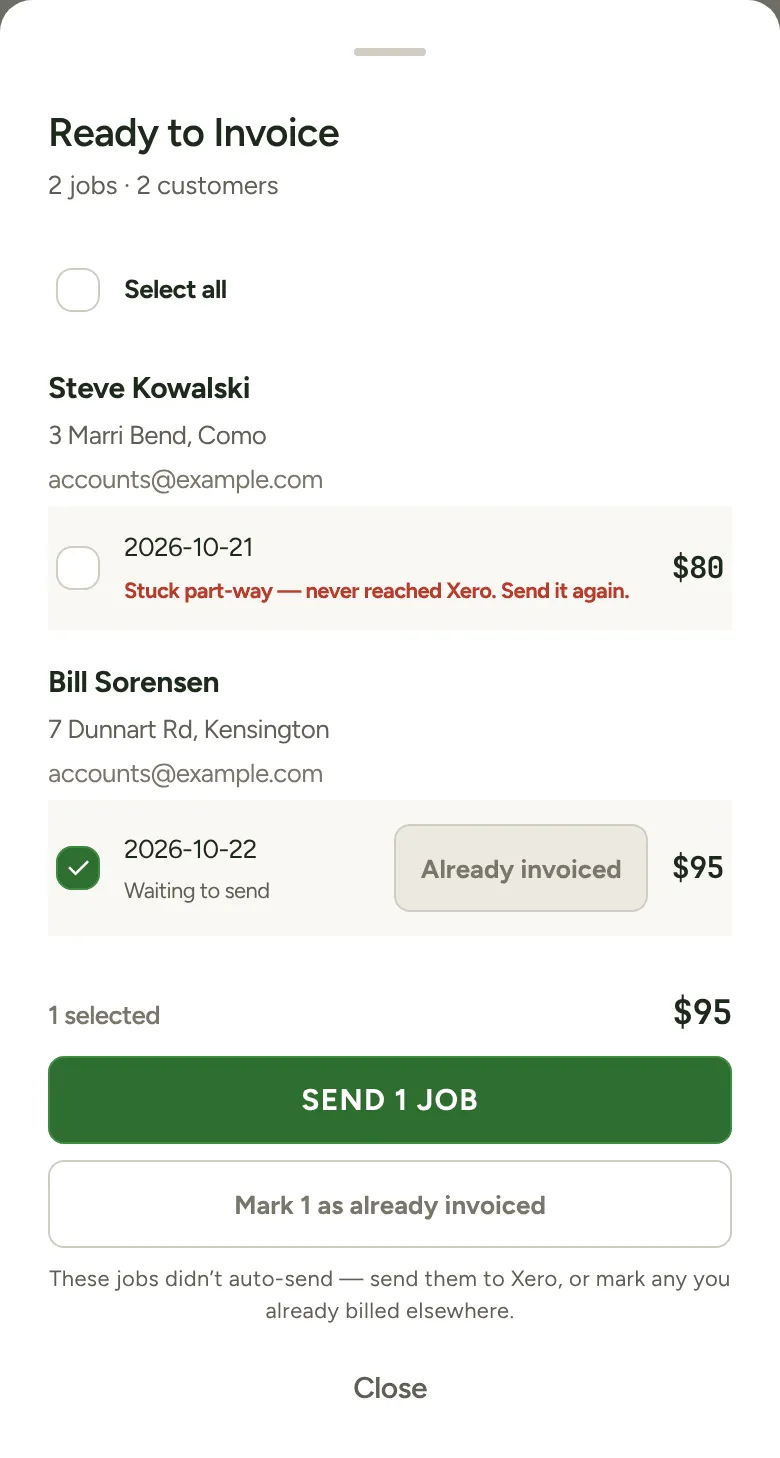
Section titled “How you’ll know”Very rarely, a send starts and never finishes. Half an hour later, LawnFlow calls that job stuck and says so in three places:
- the Money tab shows Stuck part-way to Xero;
- in More, the Ready to invoice row says how many are stuck part-way;
- in the list itself, the job reads Stuck part-way — never reached Xero. Send it again.
Sending it again
Section titled “Sending it again”-
Tap Stuck part-way to Xero on the Money tab, or Ready to invoice in More.
-
Tick the stuck job, and any others you want to go, then tap the Send button.
-
Check the list and send. LawnFlow puts the stuck job back in line and sends it with the rest.
A stuck job has no Already invoiced button. Sending it again is the fix.
“Created in Xero but not recorded here”
Section titled ““Created in Xero but not recorded here””This one is different. Xero made the draft, but LawnFlow didn’t hear back in time, so the job is still in the list with a message telling you to check Xero before sending again. The message gives the invoice number when Xero sent one.
- Open Xero and look for that draft.
- If it’s there, tap Already invoiced on the job. Don’t send it again: after a few minutes, a second send makes a second invoice.
- If it isn’t there, tap Retry. You’ll see Invoice created when it works.
Other messages
Section titled “Other messages”- No email: the customer has no email address. Tap Add email, type it and save, then send.
- Blocked: an agency’s property. The line under it says what’s missing, usually the agency’s billing email in More, Agencies.
- Anything else in red is Xero’s own reason. Fix what it says, then tap Retry.