
How do I add a one-off job?
For someone new who wants one job, use Add Job and leave Recurring? on One-off. For extra work at a customer you already have, open their page and tap + Add to schedule.
A one-off job for someone new
Section titled “A one-off job for someone new”-
Tap +, then New job, and fill in the job as usual. See How do I add a customer by hand?
-
Under Recurring?, leave One-off picked. It’s the default.
-
Pick the week under When? and tap Add Job.
Once you’ve done it, at the start of the next week the job moves to On hold. It stays in your book with its history, ready if they ring again. Their page shows Not on a schedule. Tap it to put them on a regular cycle.
Extra work for a customer you already have
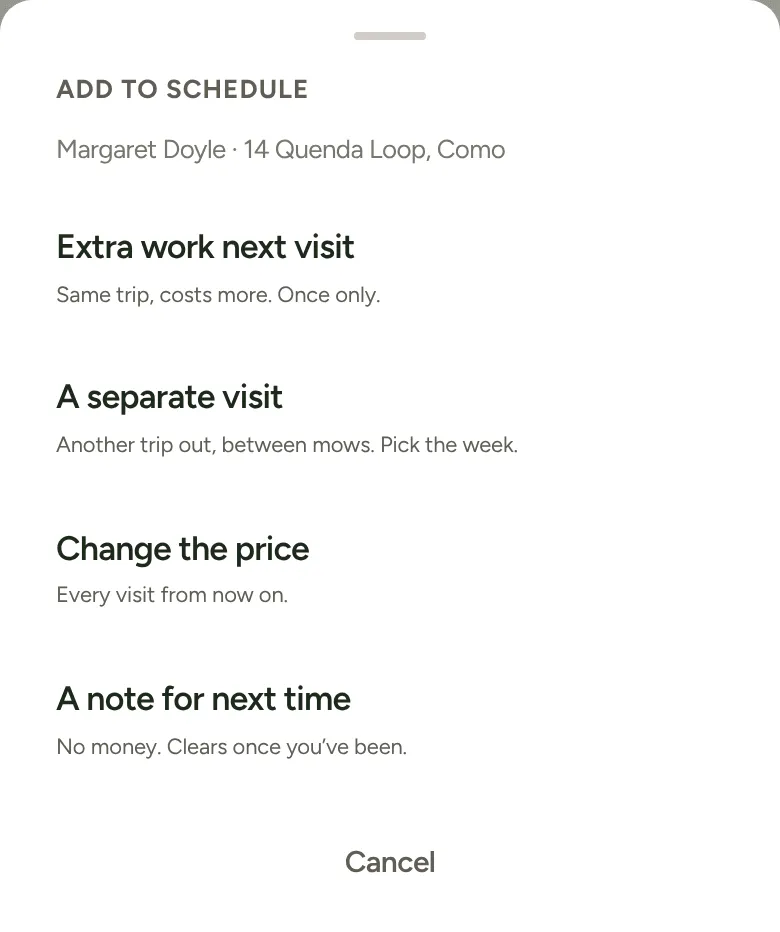
Section titled “Extra work for a customer you already have”Open their page and tap + Add to schedule under their visits. Two of the choices are one-offs:
- Extra work next visit: “Same trip, costs more. Once only.” A hedge trim while you’re there for the mow, say.
- A separate visit: “Another trip out, between mows. Pick the week.” A clean up, or turf going down.
Type what the work is and its price.
- For extra work, tap Add it. It’s added to their next visit’s price, and the Week tab marks that visit Extra work.
- For a separate visit, pick the week under Which week (up to 16 weeks out) and tap Add the visit. It becomes its own job with its own price. On the Week tab it shows as the address with the work beside it, and you put it on a day like any other job. On Today it’s marked One-off, and you finish it with Job Complete.
A customer can have one lot of extra work waiting at a time. If one is already waiting, the sheet opens on a separate visit instead.
Changing it later
Section titled “Changing it later”On the customer’s page, tap the One-off visit to open This visit: Add to Today, Reschedule or Delete this visit. For extra work, tap their next visit and choose Change extra work or Remove extra work.